
Open OTT Navigator and choose Xtream Codes on the Add provider screen. Fill in the URL address, login and password we sent you, leave the API version on v2, keep Active ticked and press Apply. After the confirmation, close the message and go back to the home screen. Your channels are under Live stream, and films and series are under Media library.
What You Need
- The OTT Navigator app installed on your Android device or Firestick
- Your Smootv Xtream Codes details: URL address, login and password (they are in the message we sent you with your trial or subscription)
- A working internet connection on that device
Good to know
OTT Navigator is only a player. The app says so itself on the Add provider screen: it works with playlists that you bring, and nothing is included. Channels, films and series come from your Smootv subscription.
Step 1: Open OTT Navigator and Choose Xtream Codes
Start the app. The Add provider screen lists several ways to connect: Playlist, Xtream Codes, MAC Portal and Stalker Portal. Choose Xtream Codes. It is the quickest way, because you only type three short fields.
If the app opens on its home screen instead, open Settings with the gear icon and go to the provider section from there.

Step 2: Enter Your Smootv Login Details
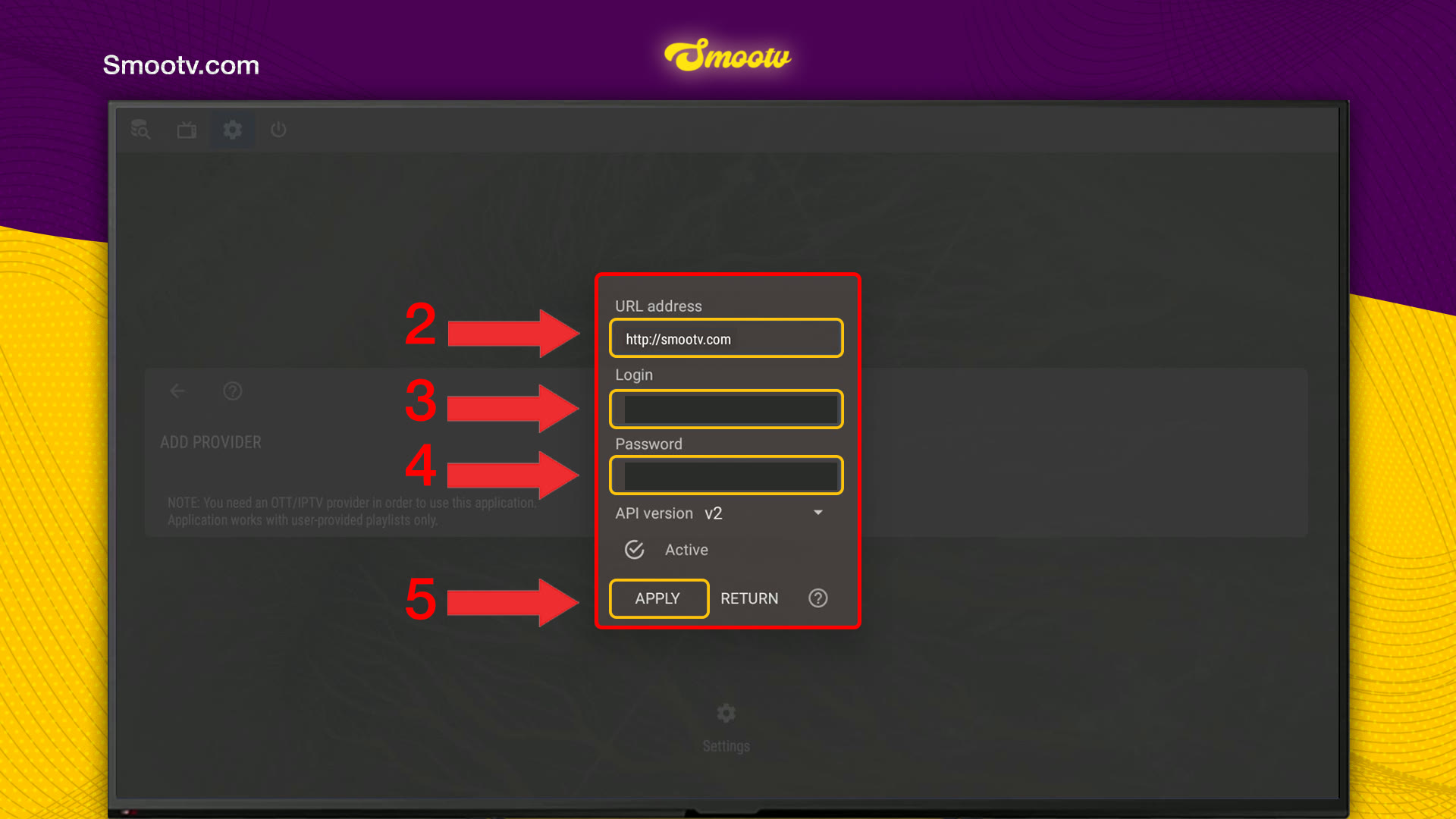
- In URL address, type the server URL we sent you. Include the http:// at the start.
- In Login, type your username.
- In Password, type your password.
- Leave API version on v2 and make sure Active is ticked.
- Press Apply.
Capital and small letters matter in the login and the password. Type them exactly as they appear in our message.
No playlist yet?
Ask us for a free 24-hour trial and we will send you one. Request your free trial
Step 3: Confirm and Check the Provider List
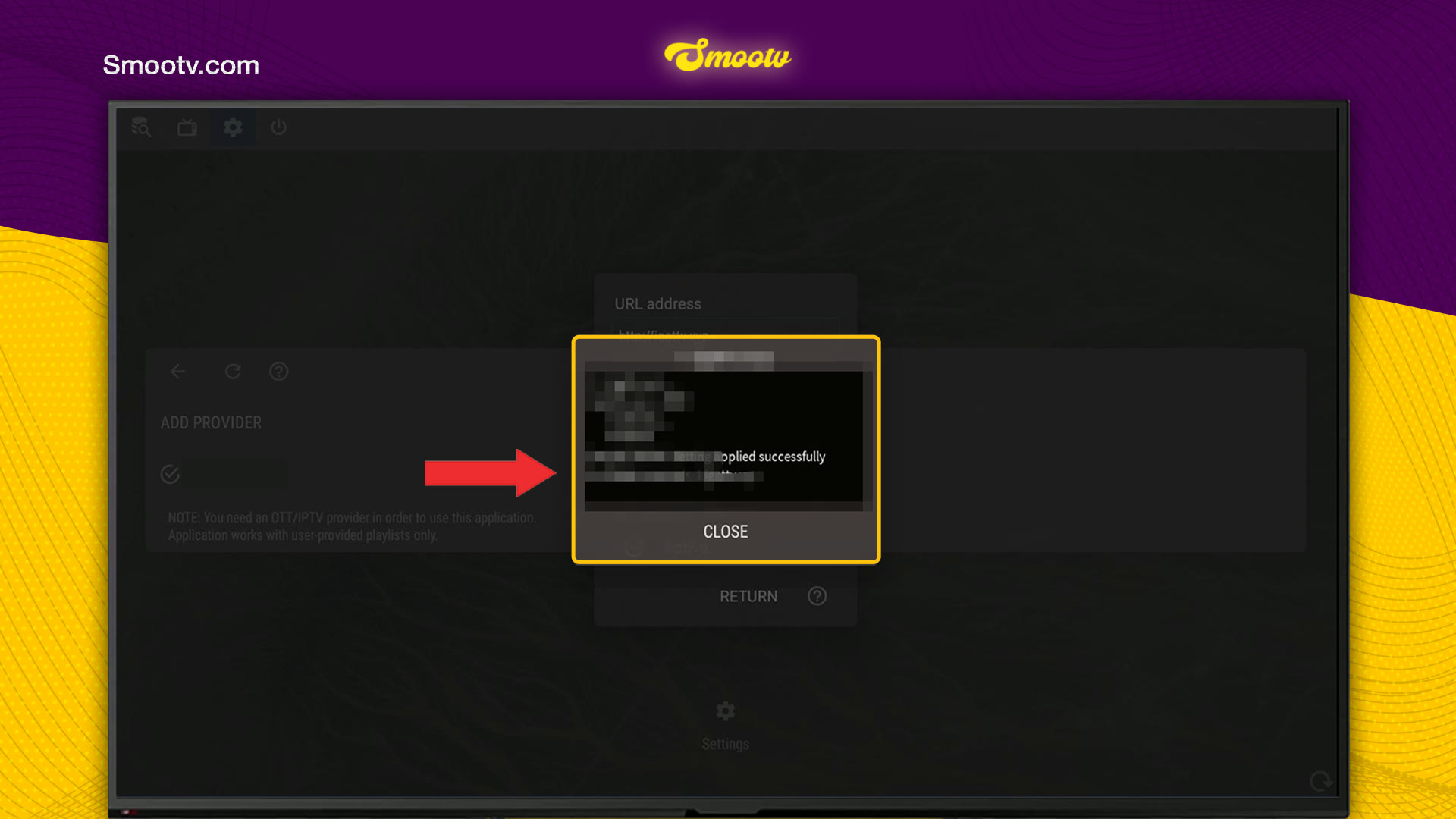
The app shows a short message that the provider was applied successfully. Press Close. Your new provider now appears in the list with a tick in front of it. If you have added more than one provider, make sure the Smootv one is the one that is ticked.
Step 4: Go to the Home Screen and Start Watching
Go back to the home screen and give the app a few seconds to load everything. You get three entries: Live stream for TV channels, Shows archive for catch-up, and Media library for films and series. The bottom left corner shows the date your subscription runs until.

That is all. The app remembers your details, so next time it opens straight on the home screen.
If Something Does Not Work
The app cannot connect after you press Apply
Check the three fields again. The URL must start with http:// and have no space at the end, and the login and password must match our message letter for letter.
The details are right but it still fails
Open the provider again and switch API version from v2 to v1, then press Apply once more. That is the only case in which you should change this setting.
The provider was added but the home screen stays empty
Check that Active is ticked for the Smootv provider and that it is the one selected in the list. Then wait a few seconds, because the first load takes the longest.
The picture buffers or freezes
Use a network cable or 5 GHz Wi-Fi. You need about 25 Mbps for HD and 50 Mbps for 4K. Restarting your router and the app often helps as well.
OTT Navigator Questions
Does OTT Navigator come with channels?
No. The app states that it works with user-provided playlists only. You add your Smootv details and the app plays them.
Can I use an M3U link instead of Xtream Codes?
Yes. Choose Playlist on the Add provider screen and paste your M3U link there. Xtream Codes is easier on a TV remote, because the three fields are much shorter than a full link.
Which API version should I pick?
Leave it on v2. Switch to v1 only if the connection fails with details that you know are correct.
Where do I find my URL, login and password?
In the message we sent you when your trial or subscription started. If you cannot find it, message our support and we will send the details again.
Where can I see when my subscription ends?
On the home screen of OTT Navigator. The bottom left corner shows the expiration date of the provider you are using.
Still Stuck?
Message us on WhatsApp or Telegram and we will set it up with you, step by step.


