
Open GSE Smart IPTV, go to Xtream Codes API in the menu and tap the + in the top right corner. Type a name, then the server address, username and password we sent you, and tap Login. Switch on EPG auto update for the new playlist, open it, and choose Live TV, Movies or Series to start watching.
What You Need
- The GSE Smart IPTV app installed on your iPhone, iPad, Android device or Firestick
- Your Smootv Xtream Codes details: server address, username and password (they are in the message we sent you with your trial or subscription)
- A working internet connection on that device
Good to know
GSE Smart IPTV is only a player. The one entry you see after installing it, Sample xtream api, is only an example. Channels, films and series come from your Smootv subscription.
Step 1: Open Xtream Codes API in the Menu
Start GSE Smart IPTV and open the menu with the three lines in the top left corner. Under Remote, choose Xtream Codes API.

Step 2: Tap the + to Add a Playlist
The Xtream-codes API screen lists your playlists. Tap the + in the top right corner to add a new one.

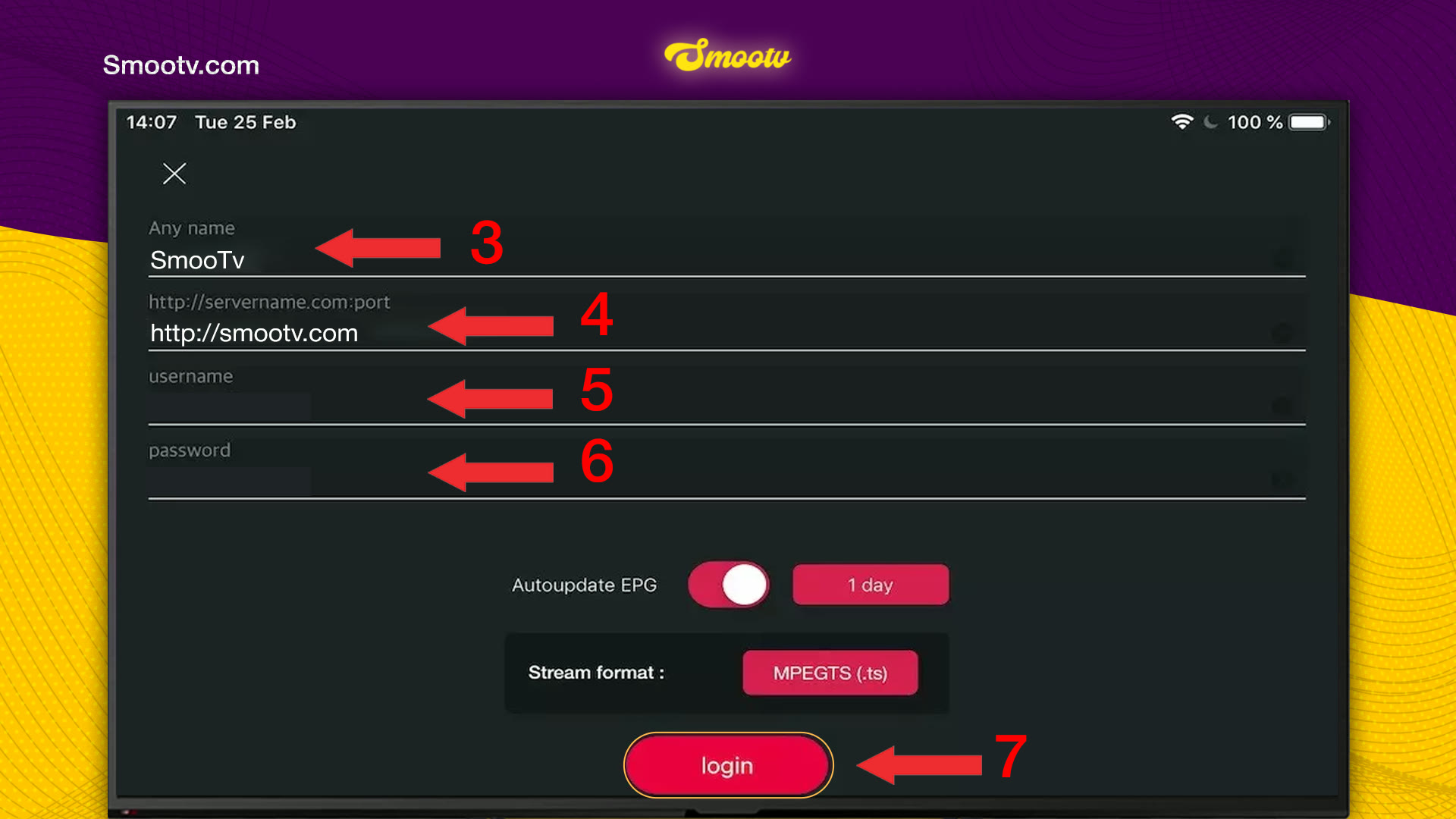
Step 3: Enter Your Smootv Login Details
- In Any name, type a name for the playlist, for example Smootv.
- In the second field, type the server address we sent you. It starts with http://.
- In username, paste your username.
- In password, paste your password.
- Switch on Autoupdate EPG and leave it on 1 day. Keep Stream format on MPEGTS (.ts).
- Tap Login to save the playlist and load it.
No playlist yet?
Ask us for a free 24-hour trial and we will send you one. Request your free trial
Step 4: Turn On the TV Guide and Start Watching
Your playlist now appears in the list under the sample entry. Slide its EPG auto update switch to on, so the TV guide keeps itself up to date.

Tap the playlist to open it and choose Live TV, Movies or Series. The content is sorted into groups by country and type, with the number of items next to each group.

That is all. The app keeps your details, so next time you only open the playlist.
If Something Does Not Work
Login fails or the playlist stays empty
Open the playlist settings again and check the three fields. The server address must start with http:// and have no space at the end, and the username and password must match our message exactly, capital letters included. Pasting is safer than typing.
The channel list loads but channels do not play
Edit the playlist and switch Stream format from MPEGTS (.ts) to HLS (.m3u8). Only change this if playback fails, because MPEGTS is the setting we recommend.
The TV guide is empty
Check that EPG auto update is switched on for your playlist. Then open the playlist menu with the three lines next to it and refresh the EPG, or restart the app.
The picture buffers or freezes
Use a network cable or 5 GHz Wi-Fi. You need about 25 Mbps for HD and 50 Mbps for 4K. Restarting your router and the app often helps as well.
GSE Smart IPTV Questions
Does GSE Smart IPTV come with channels?
No. It is a player, and the sample entry it ships with is only an example. You add your Smootv details and the app plays them.
Can I use an M3U link instead of Xtream Codes?
Yes. The same menu has Remote Playlists, which is where an M3U link goes. Xtream Codes is easier to type, because three short fields replace one long link.
Which stream format should I choose?
Keep MPEGTS (.ts). Switch to HLS (.m3u8) only if channels refuse to play.
How often does the TV guide update?
With Autoupdate EPG set to 1 day, the app refreshes the guide once a day. You can pick a different interval in the same form.
Where do I find my server address, username and password?
In the message we sent you when your trial or subscription started. If you cannot find it, message our support and we will send the details again.
Still Stuck?
Message us on WhatsApp or Telegram and we will set it up with you, step by step.


