
In SS IPTV, open Settings, go to General and press Get code. On your phone or computer, open the playlist editor on ss-iptv.com, enter that code and press Add the device. Then press Add an item, paste your Smootv M3U link in the Source field, press OK and Save. Back on the TV, press the reload icon and your playlist appears on the main screen.
What You Need
- The SS IPTV app installed on your TV, with the TV connected to the internet
- Your Smootv M3U link (it is in the message we sent you with your trial or subscription)
- A phone or computer to open the SS IPTV website
Good to know
This guide uses the connection code of SS IPTV. The app gives you a short code, and with that code you add your link on the SS IPTV website. It sounds like a detour, but it saves you from typing a very long link with a remote control.
Step 1: Get a Connection Code in the App
- Open SS IPTV on your TV and select the gear icon in the top right corner of the main screen.
- In Settings, open General, the first item in the list on the left.
- Under Connection Code, press Get code and write down the code that appears, for example 4Y4S.


The code is temporary, so keep the TV on this screen and carry on with the next step straight away.
Step 2: Connect Your TV on the SS IPTV Website
On your phone or computer, open the playlist editor of SS IPTV: ss-iptv.com/en/users/playlist
- Type the connection code from your TV in the field on the right.
- Press Add the device. The page confirms with: Your device has been successfully connected!

Step 3: Add Your Smootv M3U Link and Save
- Open the My playlist tab and press Add an item.
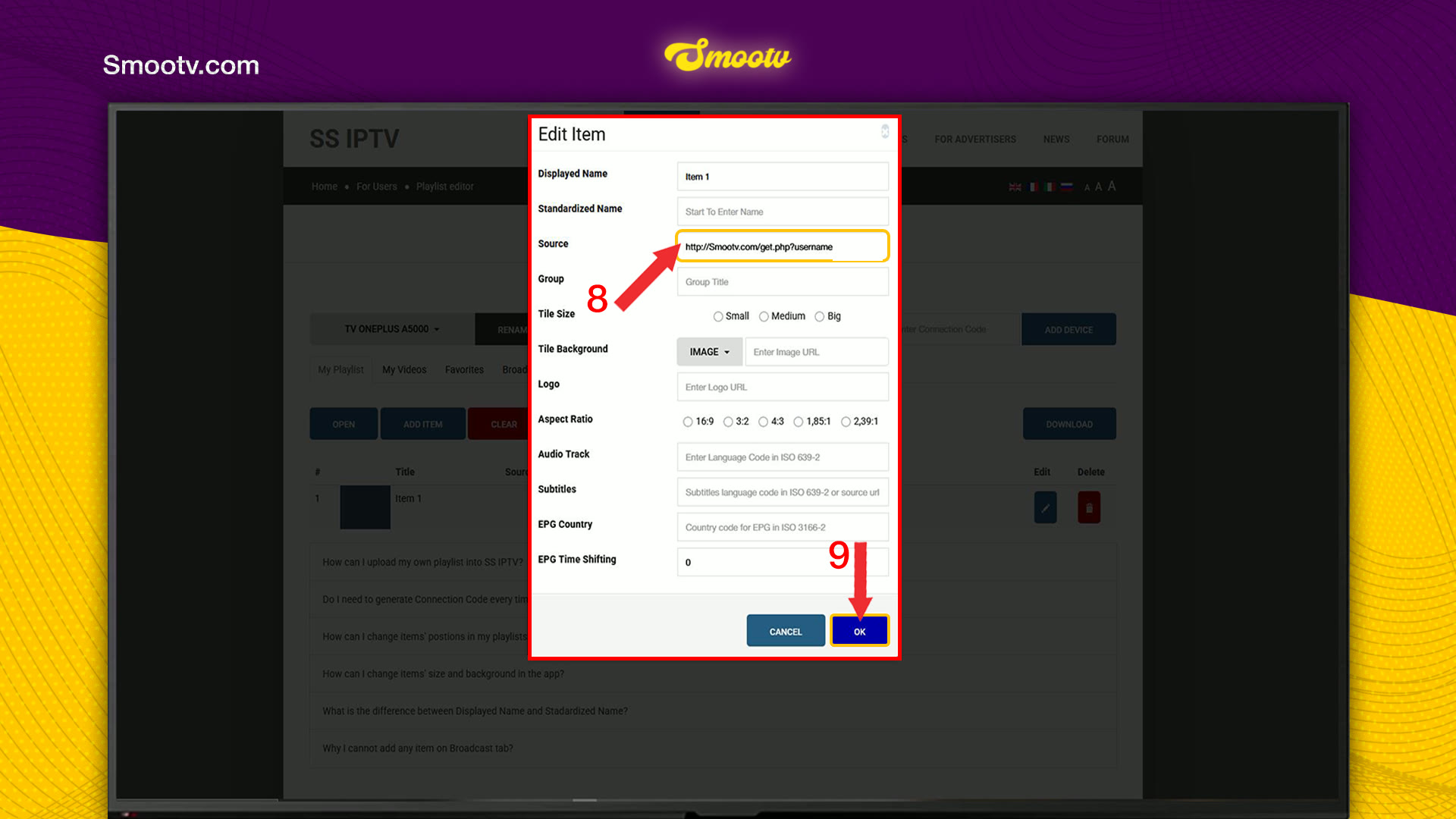
- In the Edit Item window, paste your Smootv M3U link in the Source field. In Displayed Name you can type Smootv. Leave the other fields as they are.
- Press OK.
- Press Save. Without this the TV never receives the playlist.


No playlist yet?
Ask us for a free 24-hour trial and we will send you one. Request your free trial
Step 4: Reload the App on Your TV
Go back to the main screen of SS IPTV and select the reload icon, the two round arrows in the top right corner. Your playlist now shows on the main screen. Open it and pick a channel.

That is all. Sit back and enjoy Smootv.
If Something Does Not Work
The website does not accept the code
Codes are temporary. Press Get code in the app again to get a new one, and enter it on the website straight away.
The playlist does not appear on the TV
Check on the website that your item is in the list and that you pressed Save after OK. Then select the reload icon in the app again.
The playlist opens but stays empty
The link in the Source field is probably incomplete. Open the item on the website, paste the full M3U link again with copy and paste, press OK and Save, and reload the app.
The picture buffers or freezes
Use a network cable or 5 GHz Wi-Fi. You need about 25 Mbps for HD and 50 Mbps for 4K. Restarting your router and the app often helps as well.
SS IPTV Questions
Where do I find the connection code in SS IPTV?
Select the gear icon on the main screen, open General and press Get code under Connection Code.
Does SS IPTV include channels?
SS IPTV is a player. Its main screen has an Open TV tile with a few free channels, but your Smootv channels, films and series come from the M3U link you add in the playlist editor.
Which field does the M3U link go in?
In Source, in the Edit Item window. Displayed Name is only the label you see on the TV.
I pressed OK but nothing changed on the TV. Why?
OK only closes the Edit Item window. The playlist is sent to your TV when you press Save, and the app shows it after you select the reload icon.
Can I rename my TV in the playlist editor?
Yes. Once the TV is connected, the editor shows a Rename the device button next to its name. That is handy when you connect more than one TV.
Still Stuck?
Message us on WhatsApp or Telegram and we will set it up with you, step by step.


