
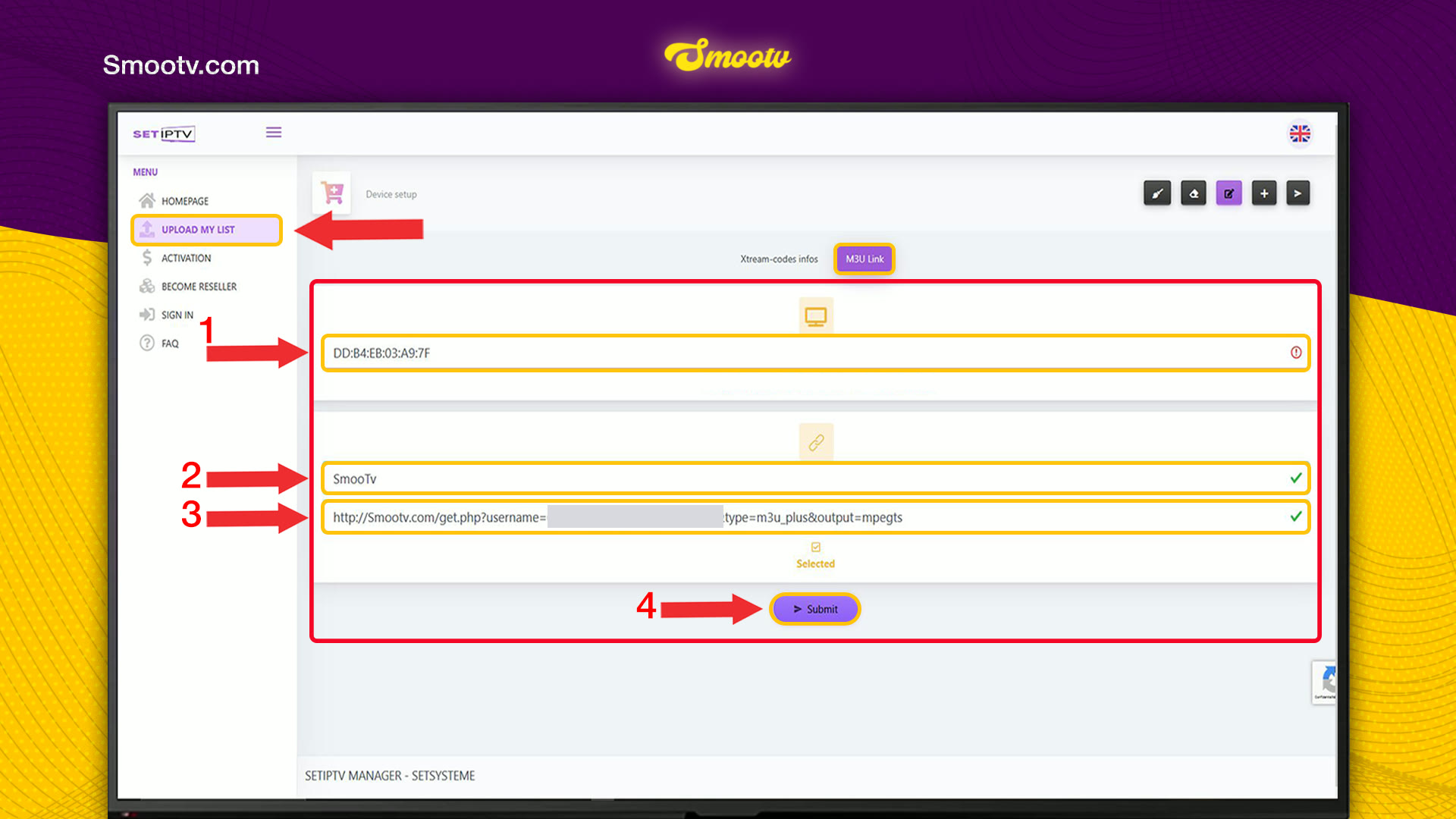
Open SET IPTV on your TV and write down the MAC address on the start screen. On your phone or computer, go to the SET IPTV website, choose Upload My List, enter that MAC address, a name and your Smootv M3U link, then press Submit. Restart the app and your channels, films and series are there. The app works free for 7 days; after that SET IPTV asks for a one-time activation fee of about €15.53 per device.
What You Need
- The SET IPTV app installed on your TV or device
- Your Smootv M3U link (it is in the message we sent you with your trial or subscription)
- A phone or computer to open the SET IPTV website
Good to know
SET IPTV is only a player. It comes without channels, and its makers are a separate company from Smootv. The activation fee goes to SET IPTV, your subscription goes to Smootv, and you need both to keep watching after the 7 test days.
Step 1: Find Your MAC Address in the App
Open SET IPTV on your TV. The first screen shows a line that starts with MAC, followed by a code of letters and numbers. Write it down or take a photo of it, because you need to type it exactly in the next step.
The same screen tells you how many test days you have left.

Step 2: Upload Your Playlist on the SET IPTV Website
On your phone or computer, open the upload page of SET IPTV: setsysteme.com/set.app
- Choose Upload My List in the menu and select the M3U Link tab.
- In the first field, type the MAC address from your TV.
- In the second field, give the playlist a name. Anything works, for example Smootv.
- In the third field, paste your Smootv M3U link.
- Press Submit and wait for the confirmation message.
Copy and paste the M3U link instead of typing it. One wrong character is enough to leave the app empty.
No playlist yet?
Ask us for a free 24-hour trial and we will send you one. Request your free trial
Step 3: Restart the App and Start Watching
Close SET IPTV on your TV and open it again, or use Reload in the app. The home screen now shows Live TV, VOD and Series, filled with your Smootv channels, films and series. In the top right corner you can see the status of the app and its expiry date.

Step 4: Activate SET IPTV Before the Test Period Ends
After the 7 test days you have to activate the app to keep using it. SET IPTV charges 165 MAD, about €15.53, once per device. There is no yearly renewal.
Open the activation page of SET IPTV: setsysteme.com/act.app
- Accept the privacy policy and the terms of sale at the top of the form.
- Enter your device MAC address, exactly as the app shows it.
- Enter your full name and your e-mail address.
- Press Pay with CMI and pay by Visa or Mastercard.
- Go back to the TV and restart the app, or use Reload. The test notice disappears.

Check the MAC address twice before you pay
SET IPTV states that an activation cannot be moved to another device and that it gives no refunds. Keep the payment receipt together with your MAC address.
That is all. Your playlist stays linked to this device, so you only do this once.
If Something Does Not Work
The app stays empty after the upload
Restart the app first. If it is still empty, upload the playlist again and check two things: the MAC address matches the one on your TV character for character, and the M3U link was pasted in full.
The website does not accept the MAC address
Type it exactly as the app shows it. The letter O and the number 0 are easy to mix up, and so are the letter B and the number 8.
The app still shows the test notice after paying
Wait 5 to 10 minutes and restart the app. If nothing changes, contact SET IPTV support with your receipt and MAC address, because they handle the activation.
The picture buffers or freezes
Use a network cable or 5 GHz Wi-Fi. You need about 25 Mbps for HD and 50 Mbps for 4K. Restarting your router and the app often helps as well.
SET IPTV Questions
Is SET IPTV free?
Only for the first 7 days. After that SET IPTV asks for a one-time fee of 165 MAD, about €15.53, per device. The price is set by SET IPTV and can differ by region.
Does the activation include channels?
No. The activation only unlocks the player. Channels, films and series come from your Smootv playlist.
I have two TVs. Do I pay twice?
Yes. The fee is tied to the MAC address, so every TV or device needs its own activation.
Can I move my activation to a new TV?
No. SET IPTV states that an activation cannot be changed or moved to another device.
Can I use my Xtream Codes login instead of an M3U link?
Yes. The upload page has a second tab for Xtream Codes details. Both ways load the same Smootv content, so use the one you find easier.
Do I have to upload the playlist again when I renew Smootv?
No, as long as your M3U link stays the same. If we send you a new link, upload it once with the same MAC address.
Still Stuck?
Message us on WhatsApp or Telegram and we will set it up with you, step by step.


