
Open IBO Player and write down the Device ID and the Device Key shown on the Playlists screen. On your phone or computer, open Manage Playlists on the IBO Player website and log in with those two codes. Press Add Playlist, type a name, paste your Smootv M3U link and press Save. Back in the app, reload or restart it, and Live TV, Movies and Series fill with your Smootv content.
Activate IBO Player through Smootv
IBO Player is free for 7 days. After that the app needs a one-time activation per device; we arrange it for you for €10, valid for the lifetime of your device, and with a 12-month subscription the activation is free. No website, no file upload: send us the code the app shows and we do the rest.
What You Need
- The IBO Player app installed on your TV or device
- Your Smootv M3U link (it is in the message we sent you with your trial or subscription)
- A phone or computer to open the IBO Player website
Good to know
IBO Player is only a player. The app says so itself: it does not sell playlists or subscriptions and comes without any content. Its makers are a separate company from Smootv, and anything you pay them for the app is separate from your Smootv subscription.
Step 1: Find Your Device ID and Device Key
Open IBO Player on your TV. A new installation starts on the Playlists screen. On the right you see two boxes: Device ID, which is the MAC address of your device, and Device Key. Write both down or take a photo. You can find them later as well, in Settings under Account Info.

Step 2: Log In on the IBO Player Website
On your phone or computer, open the IBO Player website and choose Manage Playlists in the menu. You land on the Device Login form.
You can also go straight to the login form: iboplayer.com/device/login
- In Device Mac Address, type your Device ID exactly as the app shows it, with the colons.
- In Device Key, type your Device Key.
- Press Login.

Step 3: Add Your Smootv Playlist
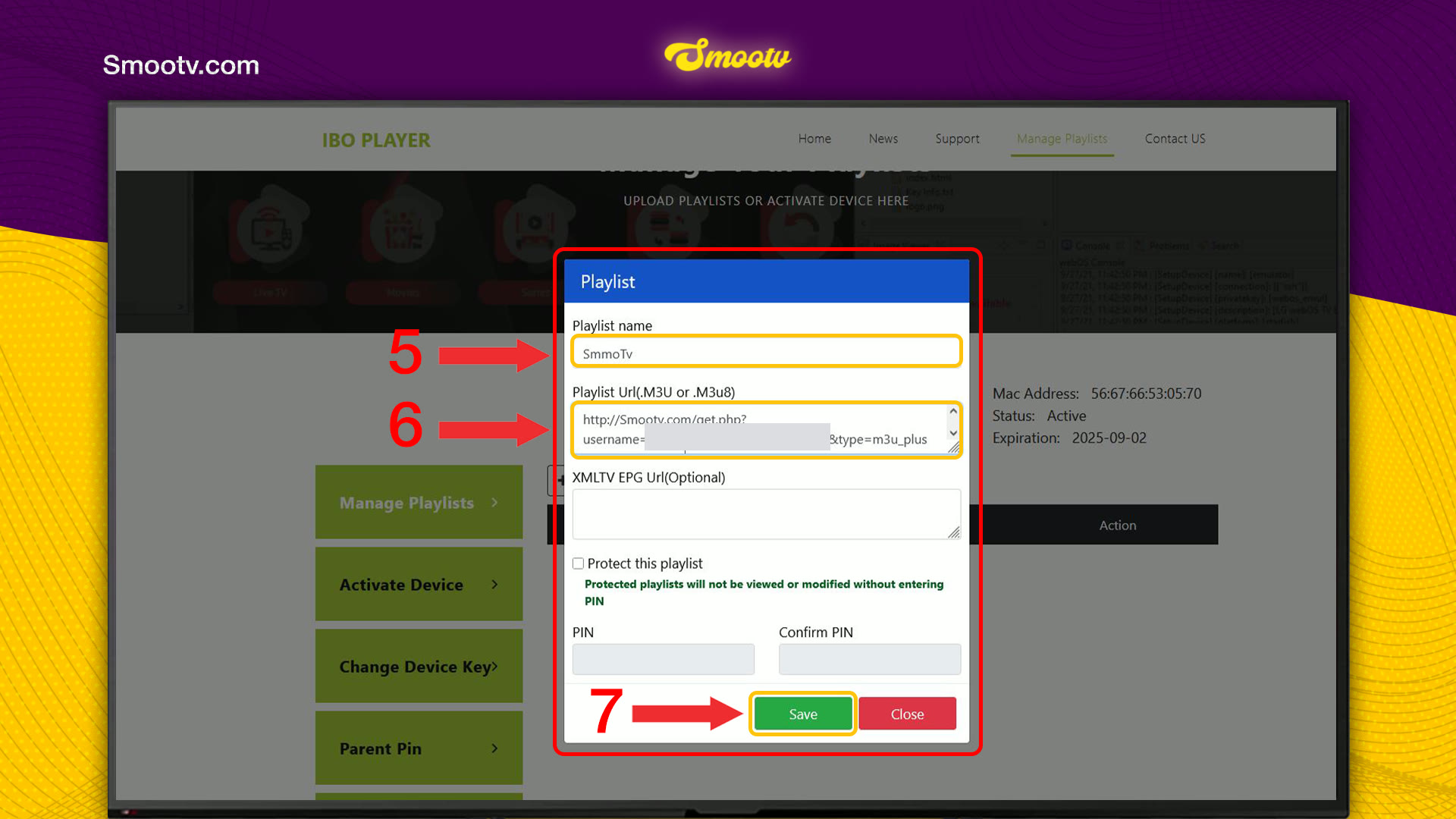
After logging in you see your MAC address, the status of the app and its expiration date. Press Add Playlist. If you prefer to use your Xtream Codes details instead of an M3U link, press Add XC Playlist.

- In Playlist name, type any name you like, for example Smootv.
- In Playlist Url, paste your Smootv M3U link.
- Leave XMLTV EPG Url empty. It is optional.
- Press Save.
You can leave Protect this playlist unticked. If you tick it and set a PIN, nobody can view or change the playlist without that PIN, so keep it somewhere safe.
No playlist yet?
Ask us for a free 24-hour trial and we will send you one. Request your free trial
Step 4: Reload the App and Start Watching
Go back to your TV and reload the app, or close it and open it again. Wait a few seconds while the playlist loads. The home screen then shows Live TV, Movies and Series with your Smootv content, next to Change Server and Settings.

That is all. The playlist stays linked to this device, so you only do this once.
If Something Does Not Work
The website does not accept your login
Check the Device ID character for character, including the colons, and type the Device Key exactly as the app shows it. The letter O and the number 0 are easy to mix up.
The app still shows only the Sample playlist
Reload or restart the app. If nothing changes, log in on the website again and check that your playlist is in the list and that the M3U link was pasted in full.
The expiration date of the app has passed
Log in on the IBO Player website. The page shows the status and expiration date of your device, and Activate Device is where the makers of the app sell the activation. Questions about that payment go to their support. Your Smootv playlist stays in place.
The picture buffers or freezes
Use a network cable or 5 GHz Wi-Fi. You need about 25 Mbps for HD and 50 Mbps for 4K. Restarting your router and the app often helps as well.
Using IBO Player Pro? Follow the IBO Player Pro setup guide
IBO Player Questions
Where do I find the Device ID and Device Key?
On the Playlists screen that opens when you start the app for the first time, in the two boxes on the right. Later you find them in Settings under Account Info.
Is the Device ID the same as the MAC address?
Yes. The app calls it Device ID and the website calls it Device Mac Address, but it is the same code of six pairs separated by colons.
Does IBO Player come with channels?
No. The app states that it is a general media player without any content. Channels, films and series come from your Smootv playlist.
Can I use my Xtream Codes login instead of an M3U link?
Yes. Next to Add Playlist there is an Add XC Playlist button for Xtream Codes details. Both ways load the same Smootv content, so use the one you find easier.
Do I need to fill in the XMLTV EPG Url?
No. The field is marked as optional, and you can save the playlist without it.
Is IBO Player the same app as IBO Player Pro?
No. They are two apps, each with its own website, so use the website that belongs to your app. If your app is called IBO Player Pro, follow our IBO Player Pro guide instead.
Still Stuck?
Message us on WhatsApp or Telegram and we will set it up with you, step by step.


